You open your admin panel. Then your chat window. Then email. Then the form inbox. Then the CRM. By mid-morning you have ten tabs and three half-finished tasks.
You copy a draft into chat for a rewrite. You paste the result back. You switch again to upload an image. You wait on a teammate for a status you could have checked yourself.
Small work eats the day. Not strategy. Not deep writing. Tab hopping and copy-paste between tools that never talk to each other. You already know the feeling. A simple publish turns into twenty minutes of context switching. A ticket triage turns into a scavenger hunt across screens. Nothing is hard. Everything is slow.
Short answer
MCP lets your assistant call real tools on your systems. You keep a small human approval loop for anything that changes live data.You stay in the loop for publish, send, delete, and similar actions. The assistant prepares the work. You confirm when risk is real.
The protocol does not ask you to trust a black box with your whole admin. It asks you to expose named tools with schemas, then decide which ones may write.
What MCP is, in plain language
MCP stands for Model Context Protocol. Anthropic published it as an open standard for connecting AI tools to apps and data sources.
Think of it as a shared way for an assistant to discover tools and use them. The assistant does not guess your API shape. A server describes what it can do.
Why it feels different from chatbots that only talk
A chatbot that only talks ends at text. You still do the clicks. You still own every paste.
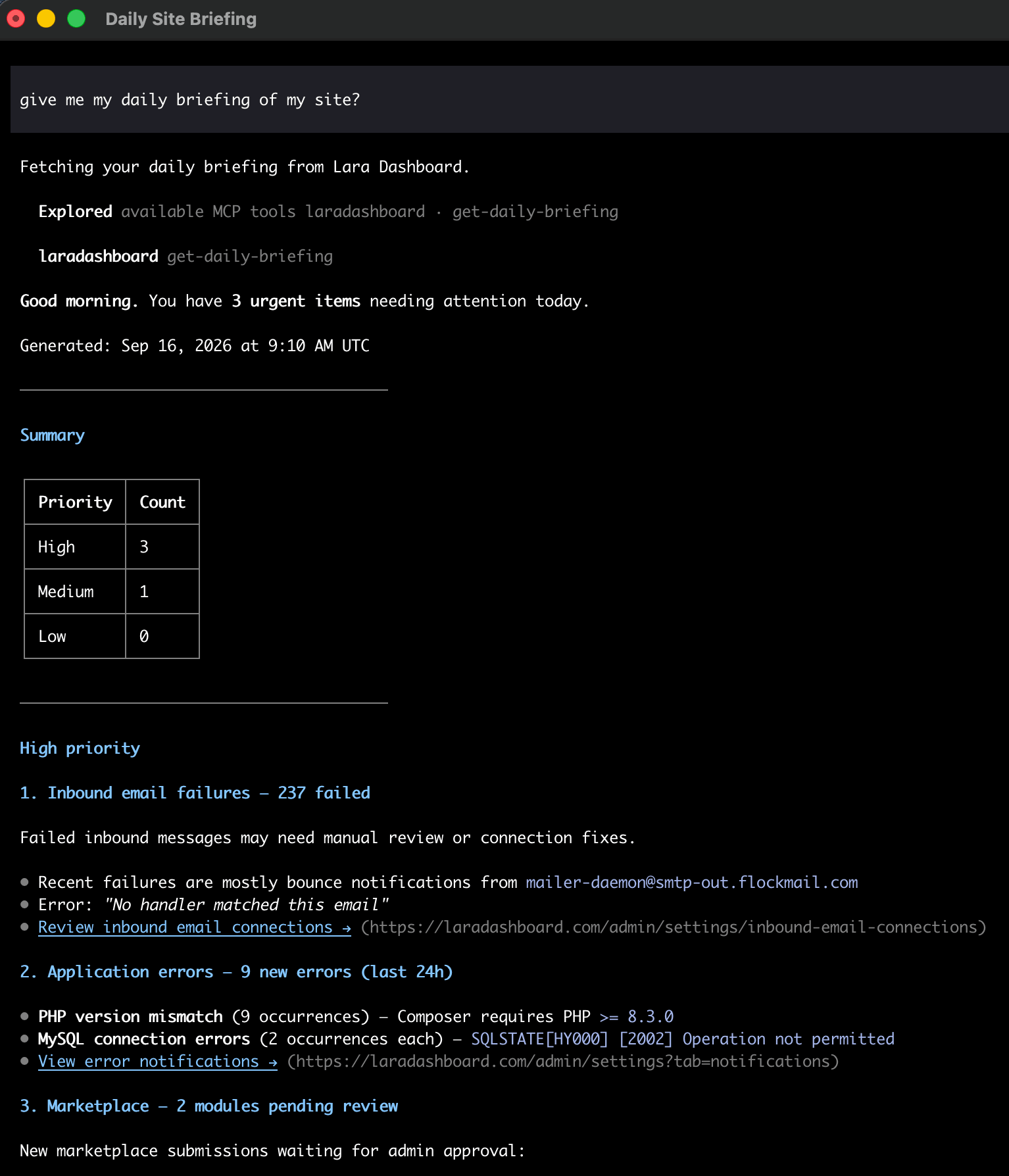
An MCP-connected assistant can read lists, draft records, and propose updates inside your real systems. The difference is not smarter prose. The difference is access with structure. You still write. You still decide. You stop acting as the only bridge between chat and the admin UI.
Where time goes today without MCP
Most teams lose minutes in the same places. The minutes feel small alone. They stack across a week. The table below compares common tasks with and without tool access.
| Task | Manual steps today | With MCP and a small approval loop |
|---|---|---|
| Publish a blog draft | Open admin, find draft, edit, set status, save | Assistant updates draft; you confirm publish |
| Triage support tickets | Open CRM, scan list, open each thread, assign | Assistant lists open tickets; you approve assigns |
| Clear unread form inbox | Open forms, click each submission, mark viewed | Assistant lists unviewed items; you approve marks |
| Find an internal doc | Search docs site, open tabs, skim sections | Assistant searches docs and quotes the hit |
| Clear app cache after a change | SSH or admin ops screen, run clear | Assistant calls cache clear after you confirm |
| Attach a featured image | Upload in media library, open post, attach | Assistant uploads or finds media; you confirm attach |
| Send a templated email | Open email UI, pick template, fill, send | Assistant prepares send; you confirm before send |
| Check what needs attention | Jump across modules for tickets, forms, errors | Assistant returns a daily briefing list |
None of these rows need magic. They need a tool the assistant can call, plus a stop where humans still matter. Notice what stays manual in the right column. Confirmation. Tone edits. Final judgment. The busywork moves. The responsibility does not vanish.
If your day is mostly reading queues and drafting replies, MCP pays off quickly. If your day is mostly novel design work, gains show up in the admin chores around that design.
The small human in the loop
Full autopilot fails for boring reasons. Secrets leak. Wrong records update. Tone misfires. Deletes stick. You already know this from password managers and payment flows. Confirmation exists because some actions are hard to reverse. A small human loop is not bureaucracy for its own sake. It is a cheap control next to a powerful tool catalog.
Patterns that work
Three patterns cover most safe workflows. Use them as defaults until you have a reason to change.
Read then propose
The assistant reads first. It lists tickets, posts, or form rows. Then it proposes the next action in plain language. You correct the plan before any write runs. Bad data shows up early. Wrong IDs get caught before updates.
Security and trust
MCP moves power closer to your data. Treat the connection like any other privileged integration.
Scoped tokens
Issue a token per agent or per host. Do not share one forever token across laptops and CI. Rotate tokens when people leave or tools change. Store them in the host secret store, not in chat history.
Real workflow patterns (not case studies)
These are patterns you can run. They are not invented case studies or fake savings numbers.
Content publish pattern
You ask for a draft on a topic. The assistant creates a post in draft status. You revise the body. You assign category terms. You generate SEO meta. You attach a featured image. You confirm publish.
Limits and failure modes
MCP helps when tools are clear and scoped. It hurts when they are vague or over-powered.
Bad tools
Vague tool names and empty descriptions make models guess. Guessing leads to wrong calls. Fix the catalog. Write short, concrete descriptions. Require the right parameters. Return useful errors.
A tool named doStuff helps no one. A tool named list-form-submissions with filters for form and unviewed state helps immediately.
Over-permission
A token with every ability turns a prompt mistake into a wide outage. Start narrow. Expand with intent. Separate read tokens from write tokens when your host allows it. Give temporary write access for a campaign, then revoke it.
Watch for "just make it work" pressure. That pressure is how forever admin tokens get born.
Silent failures
A tool that returns success while doing nothing is worse than a loud error. Prefer clear failure messages. Have the assistant report tool errors in plain language. Retry only when the error is transient.
Also watch partial success. A post may create while image generation fails. Read the full response. Confirm what actually changed.
Confused identity
If multiple people share one agent token, audit trails blur. Give people their own tokens tied to their user permissions when you can. Shared robots for CI are fine. Shared robots for human editors are not.
When not to connect MCP
Skip MCP for systems you do not trust yet. Skip it for production databases with no staging twin and no audit log.
Skip write tools for highly regulated flows until legal and security review the design. Read-only search may still be fine.
Skip autopilot for public replies on angry customer threads. Draft is fine. Send still needs a human eye.
Skip connecting personal mail inboxes with broad send rights on day one. Start with templated sends that you confirm.
Tip: If you cannot explain who may call a tool and how you will audit it, do not expose that tool yet.
Limits are normal. A smaller catalog you trust beats a huge catalog you fear.
How LaraDashboard helps
Disclosure: LaraDashboard is our open-source Laravel admin and CMS. We recommend it when you want a Laravel-native back office with a built-in MCP server for assistants.
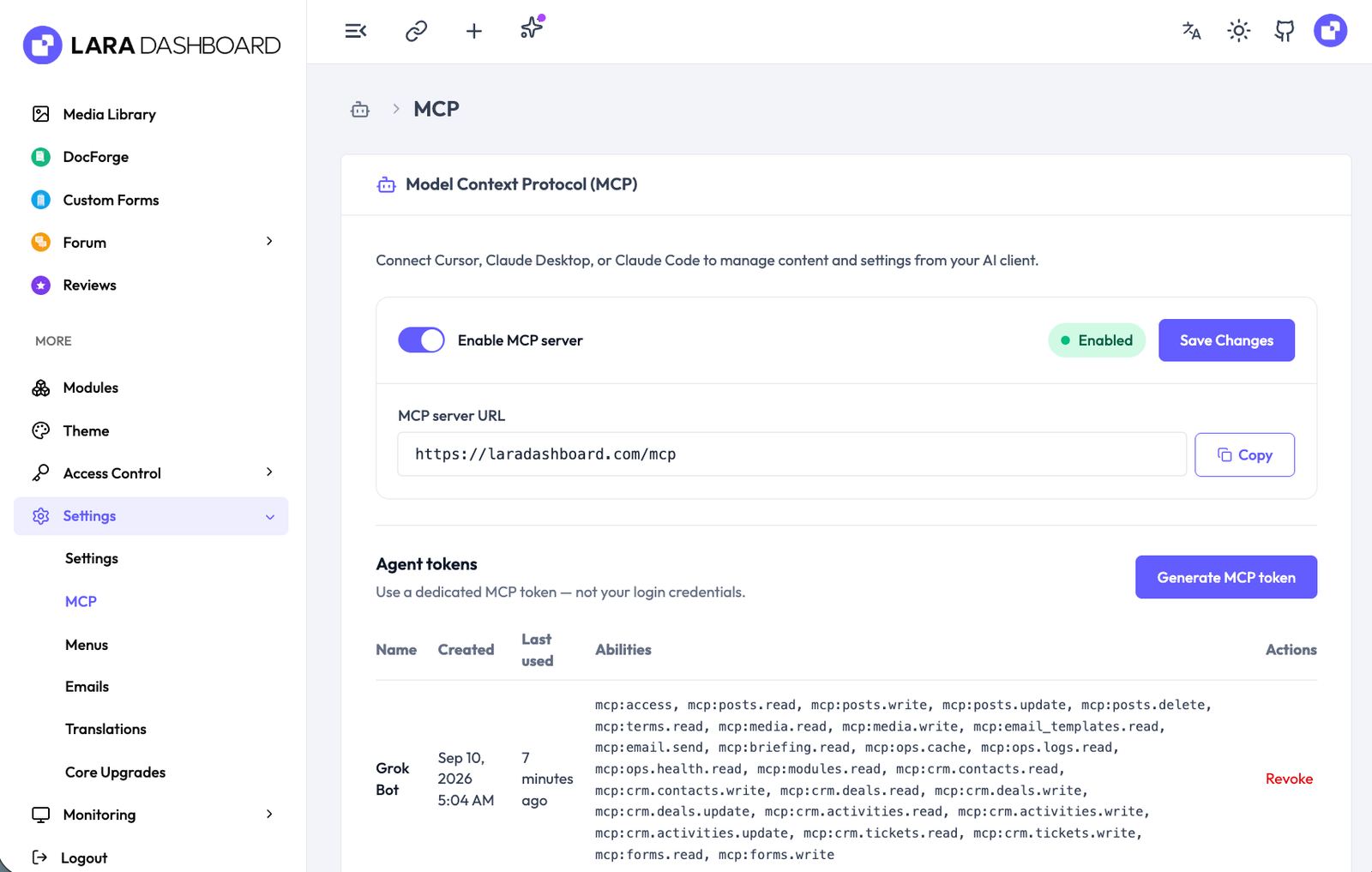
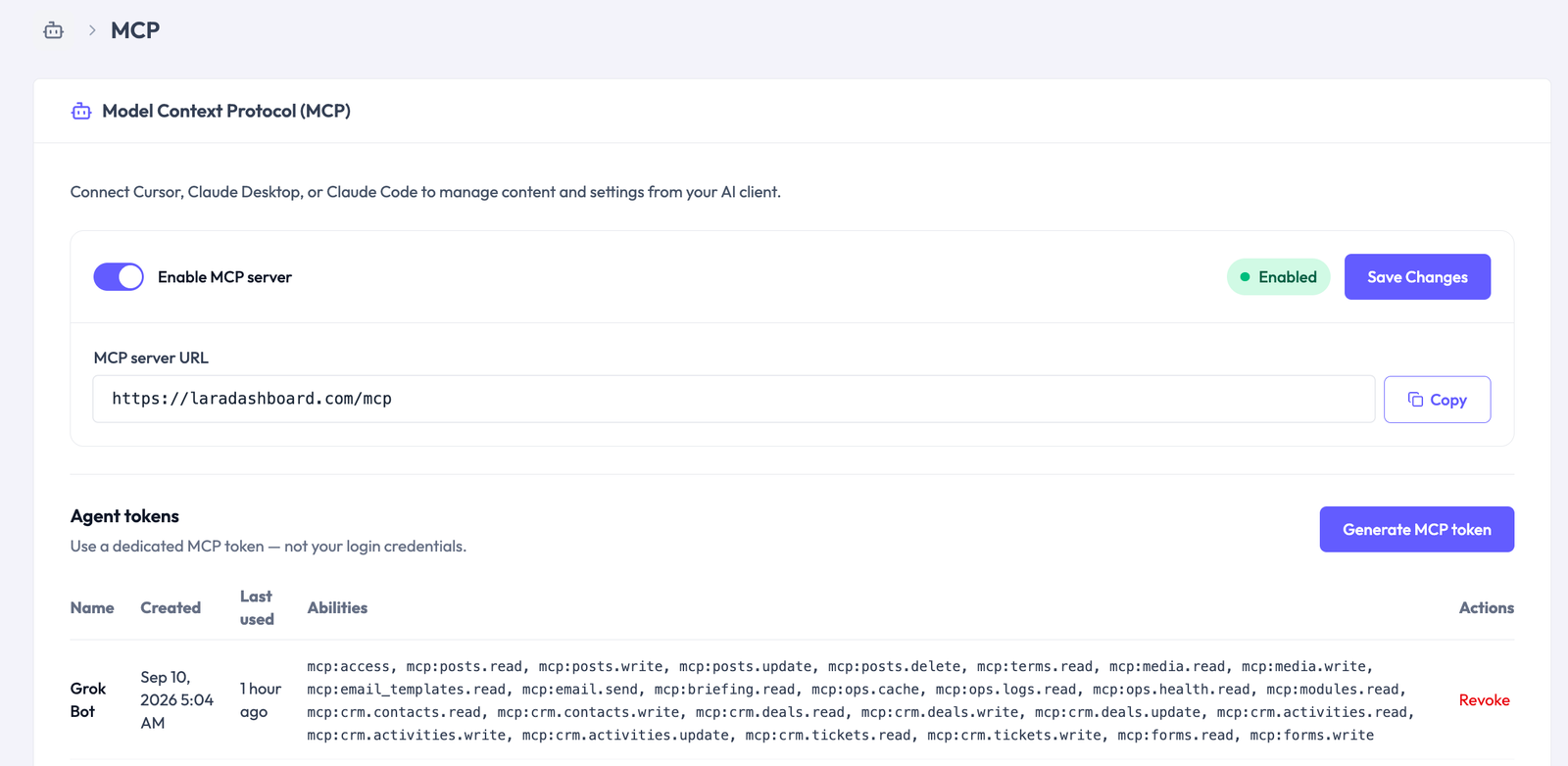
You enable and manage MCP under Settings -> MCP. You create agent tokens and attach abilities. Each token only sees tools allowed by those abilities and by your user permissions.
Comparing CMS options after WordPress? Start with what LaraDashboard is.
Then return here for the MCP workflow layer.
Tools across the product
Core and modules expose tools for everyday work:
- Posts and pages: list, get, create, update, delete, assign terms, generate SEO meta
- Media: list, upload-media, attach-featured-image
- Overview: get-daily-briefing for a today checklist across modules
- Email: list templates, get template, send-email with approval in your host
- Operations: clear-cache, list-logs, get-log-tail, get-site-health
- Discovery: list-mcp-tools, list-modules
- CRM: contacts, deals, activities, tickets with list/get/write/update paths
- Forms: list-form-submissions, mark-form-submission-viewed
- Docs (when DocForge is present): list projects, list docs, get doc, search docs
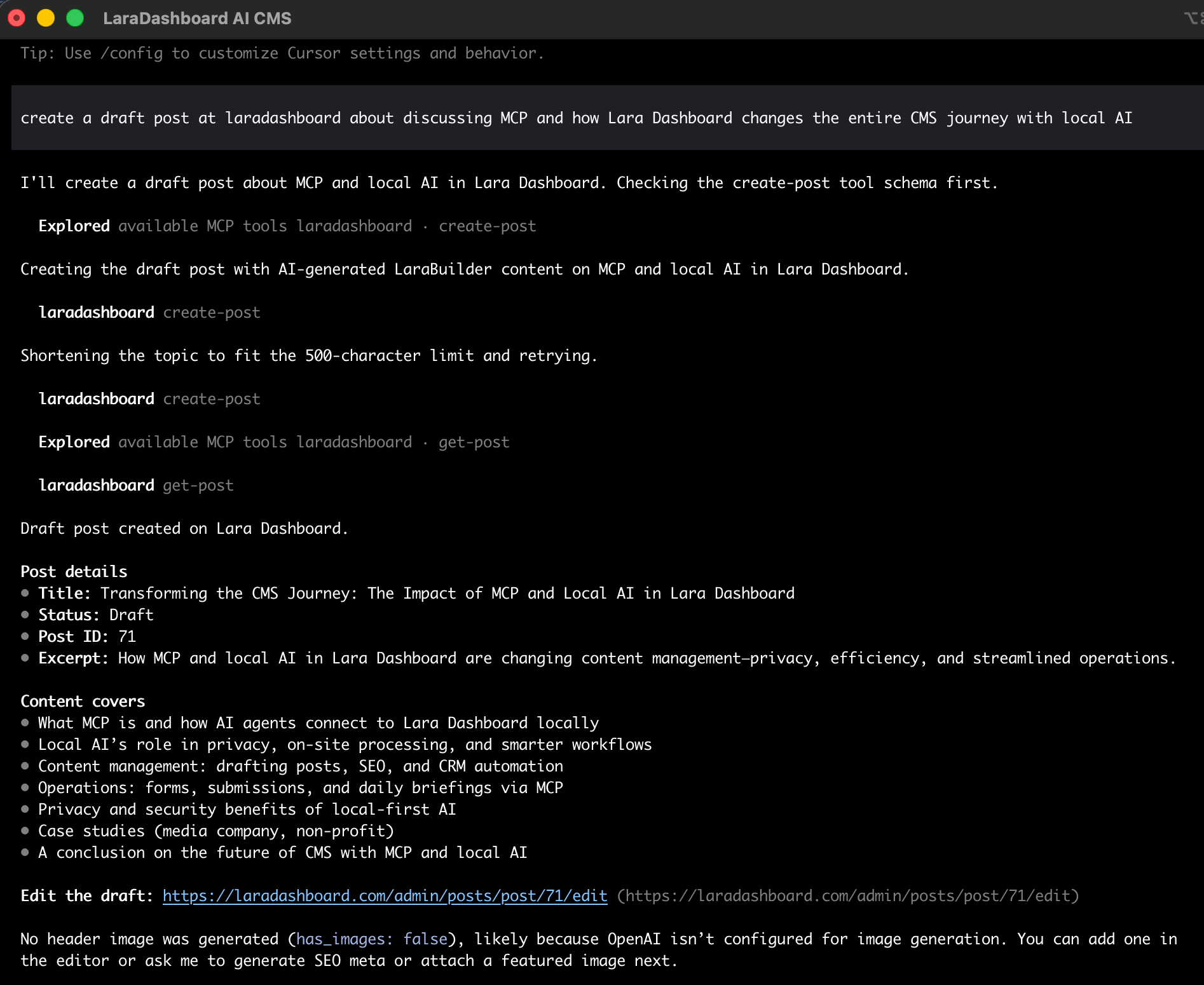
Example: Writing a blog post using Local AI agents
Upload-media plus attach-featured-image closes a common publishing gap. The assistant can put a new image in the library, then set it on the post after you confirm.
Daily briefing pulls actionable items into one list. You stop hopping modules to learn what needs attention.
You can ask for the briefing at the start of the day. Tickets, form messages, and other module items show up as a checklist. You pick the next action instead of scanning five menus.
Modules and abilities
Installed modules can expose more tools. List modules, then list MCP tools, to see what the current token can call. Abilities look like mcp:posts.write, mcp:media.write, mcp:crm.tickets.read, and similar scopes. Pair them with Spatie-style permissions already used in the admin.
You keep one product surface for content, CRM, forms, and ops. The assistant uses the same rules your team already understands in the UI.
Modular structure helps here. A CRM module can ship ticket tools without forcing every install to enable them. Activate what you need. Keep the catalog honest.
LaraDashboard is not the only way to run an MCP server. It is a practical path if you already want a modular Laravel CMS and admin. Keep the migration checklist open during planning.
How the human loop maps to LaraDashboard tools
Map tools to loop stages so your team shares a vocabulary.
- Read: list-posts, list-tickets, list-form-submissions, search-docs, get-daily-briefing, get-site-health
- Draft / propose: create-post as draft, draft reply text before reply-ticket, prepare email fields before send-email
- Approve write: update-post to published, reply-ticket, send-email, clear-cache, delete-post, mark-form-submission-viewed
- Media path: upload-media, then attach-featured-image after visual check
Write that map on an internal doc. New editors learn faster when the loop is explicit.
Getting started checklist on LaraDashboard
Use this checklist when you wire your first assistant.
- ✅ Confirm MCP is enabled under Settings -> MCP
- ✅ Create a dedicated agent token (do not reuse personal browser sessions)
- ✅ Grant least-privilege abilities for the job (start read-only if unsure)
- ✅ Confirm the linked user has matching admin permissions
- ✅ Connect your MCP client (Cursor, Claude Desktop, or similar) to the server URL
- ✅ Call list-mcp-tools and verify the catalog matches expectations
- ✅ Run a read-only test (list-posts or get-daily-briefing)
- ✅ Run a draft write test (create-post as draft, include_images false if you handle heroes yourself)
- ✅ Practice an approval loop on publish, send, or delete
- ✅ Add media upload and featured image attach only when needed
- ✅ Turn on or review audit logging for tool calls
- ✅ Document which humans approve which write actions
- ✅ Expand abilities only after the first workflow feels stable
- ✅ Add a second token for a second job instead of widening the first forever
- ✅ Revisit the catalog after each module activate or deactivate
Work the list in order. Do not skip the read-only test. Do not jump to send-email on day one. If list-mcp-tools looks empty, check token abilities first. Then check module status. Then check site health. Most "MCP is broken" reports are scope issues.
Putting a week of work on rails
Here is a simple weekly rhythm you can copy without inventing metrics.
Monday: Read-only briefing. Triage tickets and forms. No public sends until you trust tone.
Tuesday: Draft two content pieces as drafts. No publish yet.
Wednesday: Human edit pass in the admin. Assign terms. Generate SEO meta. Attach media with confirmation.
Choosing your first three tools
Pick a small starter set. Three tools beat thirty on week one.
A practical starter set for content teams:
- get-daily-briefing for orientation
- list-posts or create-post for draft work
- update-post for publish only after review
A practical starter set for support teams:
Teaching the assistant your house rules
Tool schemas are not enough. Your team still needs house rules in the client instructions.
Keep the rules short.
Measuring progress without fake stats
You do not need market share charts to know if MCP helps. Watch a few local signals. Count tab switches during a publish. Count minutes from "please draft this" to a reviewable draft. Count how often you re-open the same admin screen for status.
If those numbers fall across two weeks, the setup is working. If they do not, the catalog or the approval habit needs work.
Common objections, answered briefly
Some teams say assistants will mess up production. They might, if you hand them every write ability on day one. Scoped tokens and draft-first habits address that.
Some teams say the admin UI is already fast. It can be. MCP still helps when work starts in chat, docs, or tickets outside the admin.
A sample dialogue shape you can reuse
You do not need fancy prompts. You need repeatable shapes.
Orient: "Give me today's briefing. Group by tickets, forms, and content."
Select: "Open ticket 42. Summarize the thread in five lines."
Draft: "Draft a public reply. Keep it under 120 words. Do not send."
What "done" looks like for an MCP pilot
End the pilot with clear exit criteria.
- One read workflow used daily for two weeks
- One write workflow with confirmations and zero surprise publishes
- Tokens named, scoped, and stored outside chat
- A short internal doc with house rules and starter tools
- A known owner for catalog changes
- A rollback plan: revoke token, disable MCP, continue in admin
FAQ
What is MCP in one sentence?
MCP is an open standard for AI clients that discover and call tools on servers wrapping your apps and data.
Is MCP only for Anthropic models?
No. It is a protocol. Multiple clients and servers can implement it. Your host must speak MCP as a client.
Do I still need the admin UI?
Yes. The admin remains the place for careful edits, design checks, and policy work. MCP shortens routine paths. It does not remove the UI.
What should never be fully automatic?
Publish to production, customer-facing sends, deletes, permission changes, and anything touching secrets should keep a human confirmation step.
How do I stop an assistant from doing too much?
Scope the token abilities. Scope the user permissions. Prefer draft statuses. Require confirmation for write tools in your client settings when available.
Can MCP help with WordPress to Laravel moves?
It can help with drafting, checklists, and CMS tasks on the Laravel side. Migration cutover still needs human-owned redirects, SEO, auth, and media plans.
What if a tool is missing from the catalog?
Check token abilities, user permissions, module status, and MCP settings. Use get-site-health and list-modules when diagnosing.
How is this different from a custom API integration?
Custom APIs work, but each client needs custom wiring. MCP standardizes discovery and schemas so many hosts can reuse the same server.
Should every module expose write tools?
No. Start with read tools. Add writes when you have an approval pattern and an audit path.
Does LaraDashboard require MCP to be useful?
No. LaraDashboard works as a Laravel admin and CMS on its own. MCP is an optional bridge for assistants when you enable it.
Where do I try LaraDashboard?
Use the public demo at https://laradashboard.com and inspect Settings -> MCP in a project you control.
Keeping the loop small as you scale
Growth adds tools. Growth should not add friction.
Review abilities every month. Remove writes nobody used. Split tokens when one agent does two jobs.
Train new editors on confirmations before you train them on advanced tools. Habits travel better than feature tours.
When a module ships new tools, announce them with a one-line purpose and a risk note. Silent catalog growth confuses people.
Ending note
You do not need a larger chatbot. You need fewer tab hops between intent and a reviewable action. MCP gives assistants a clear door into your systems. A small human loop keeps publish, send, and delete under your control. Read then propose. Draft then approve. Dry-run then apply.
Start narrow. Read first. Add one write workflow. Keep confirmations on the actions you would hate to undo. Expand only when the catalog and the logs look clean.
If you want that door inside a Laravel CMS and admin you can own, try LaraDashboard. Open Settings -> MCP, create a scoped token, and run the checklist above.
See the live product at https://laradashboard.com.